What CCTV Ghosting Is and What Usually Causes It
In CCTV, ghosting is a faint duplicate, trail or shadow image that follows moving objects or sits over a scene. The term is used loosely, so it can describe several different faults that look similar on screen. Most CCTV ghosting causes fall into four groups: signal and cabling problems, camera settings, video compression and network limits, and optical or environmental issues.
The cause matters because the fix differs. A cleaning cloth can solve a reflection problem, a settings change can solve a slow-shutter trail, and a cable fault needs an installer. Treating every case as a failing camera leads to unnecessary replacements.
Ghosting is more than a cosmetic annoyance. A person or vehicle that appears doubled, smeared or semi-transparent is harder to identify, and a still frame taken from that footage is weaker as documentation. Finding the pattern early protects the quality of both live monitoring and later review.
Signal and Cabling Causes
On analog or hybrid systems, interference on the cable run is a classic source of doubled or shifting images. Common contributors include poor or corroded connectors, damaged coax, low-quality baluns, cables routed alongside power lines, and ground loops between devices on different power circuits. Cables that have aged or been disturbed during other building work are frequent suspects.
Power matters as well. An undersized or failing power supply, or a long run with voltage drop, can cause unstable image output that looks like ghosting or flicker. On IP cameras using Power over Ethernet, a marginal switch port or a damaged patch cable can produce similar symptoms.
A useful clue is whether the problem is limited to one camera or to a group sharing a cable path, power supply, switch or recorder input. Faults that follow the shared component point to infrastructure rather than the camera itself.
Settings, Compression and Network Causes
Many ghosting complaints trace back to configuration. In low light, cameras often slow the shutter to gather more light, which leaves moving subjects with trails. Aggressive noise reduction, especially temporal noise reduction that blends successive frames, can produce a similar lingering image behind movement. Wide dynamic range settings and electronic image stabilization can add artifacts if they are poorly matched to the scene.
Encoding choices play a part too. A bitrate that is too low for a busy scene, a low frame rate, or a long interval between full reference frames can make moving areas smear or blur into the background. Interlaced output on older equipment can cause a combed or doubled look on moving objects.
On IP systems, network congestion and packet loss can leave visual debris that resembles ghosting, particularly on wireless links or heavily shared switches. Comparing the live stream with the recorded stream helps here. If the live image is clean but the recording is not, the recorder, storage or encoding settings are more likely to be involved.
Optical and Environmental Causes
Not every ghost is electronic. A dirty lens, a scratched or smudged dome bubble, condensation, or a film of dust can create a hazy overlay or a reflected duplicate of bright objects. Infrared illumination at night can bounce off a nearby surface, a spider web or the inside of a dome, washing out the scene or producing a repeated glare.
Heat, moisture and vibration also affect cameras over time. Housings that are no longer sealed, loose mounts and poles that sway in wind can all degrade image stability. Cameras that face glass, polished floors or reflective cladding may pick up mirrored images that look like a second subject.
These causes tend to be location-specific and sometimes time-specific, appearing only at night, after rain or at a certain angle of sunlight. Noting when the problem appears is often enough to separate an optical issue from a signal fault.
How to Check Whether Your System Has Ghosting
Start with a structured review rather than a casual glance at the monitor wall. For each camera, watch live video of someone walking through the scene, then pull recorded footage of similar movement from daytime, dusk and night. Look for trailing shadows behind moving subjects, doubled edges, hazy overlays and image shifts. Capture a still frame of each problem so you can compare results after any change.
Compare views side by side. If one camera ghosts and its neighbors do not, suspect the camera, its lens or its cable. If several cameras on the same recorder, switch or power supply show it, suspect the shared component. If the issue appears only in recordings, look at encoding and storage.
Keep a simple log with camera name, location, time of day, symptom and a reference image. Over several weeks the log shows whether a fault is constant, intermittent or linked to weather or lighting, which is the information an installer will ask for first.
Maintenance Steps and When to Escalate to an Installer
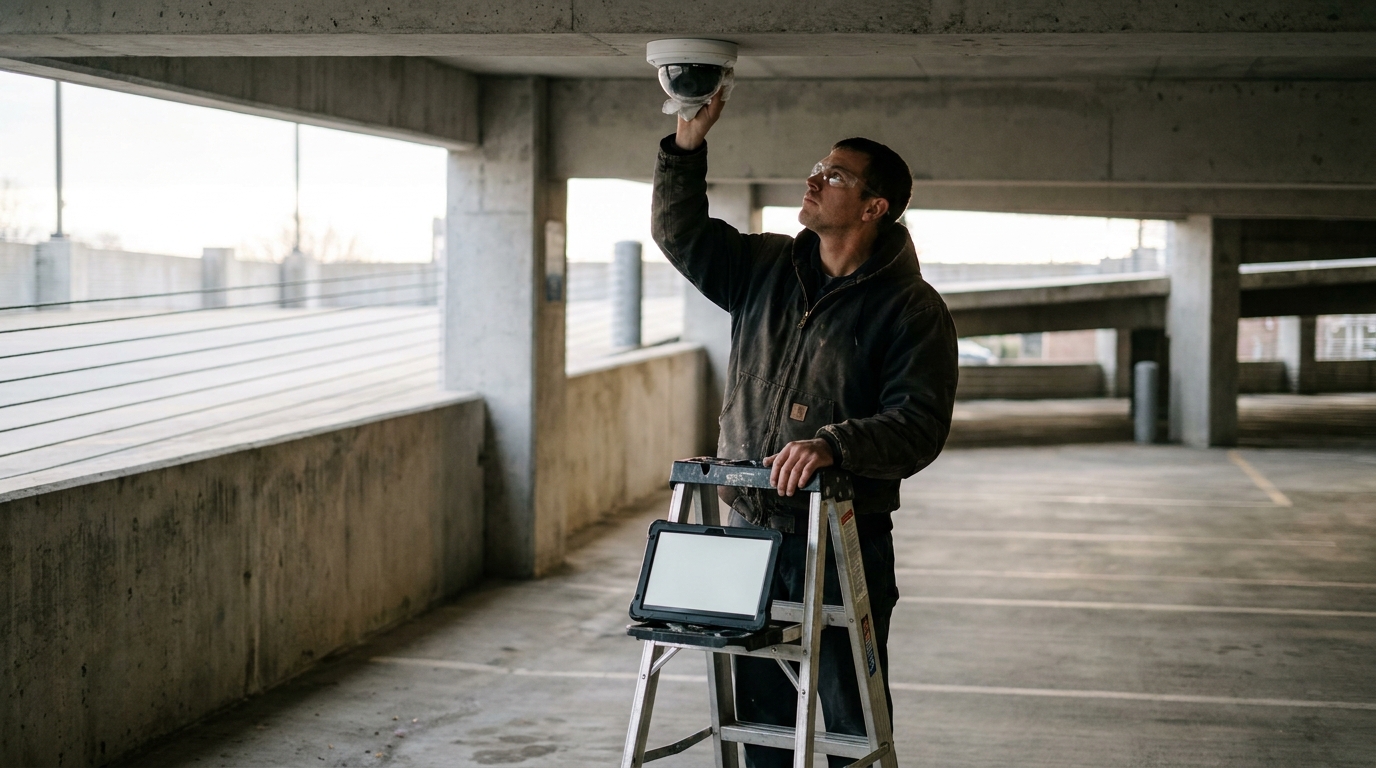
Several checks are suitable for facility or IT staff. Clean lenses and domes using manufacturer-approved methods, clear obstructions such as webs and debris, and confirm that housings are sealed and mounts are secure. Review exposure, noise reduction, frame rate and bitrate settings against the manufacturer's guidance, change one setting at a time, and record the original values. Check that patch cables and connectors are seated, and confirm that network links are not saturated.
Escalate to a qualified installer when the fault follows a cable run, connector or power supply, when it persists after cleaning and sensible settings changes, or when several cameras are affected together. Also escalate if the work requires access to ceilings, poles or electrical circuits, or if a camera covers a high-risk area and cannot stay degraded while you investigate. Bring your log, reference stills and a list of changes already made.
Build the checks into a recurring schedule, with a more frequent review for cameras in dusty, wet or high-glare locations. After any construction, cabling or network change, re-check affected views before assuming they are unchanged.
Conclusion
CCTV ghosting is rarely mysterious once you separate cabling, settings, compression and optical causes and test each in turn. A routine of comparing live and recorded footage, logging symptoms and cleaning and inspecting cameras resolves many cases and gives installers useful evidence for the rest.
Image quality also determines how well any analytics layer performs. Patrol Sense applies AI detection to existing cameras and produces snapshot-based evidence, so clear, stable images directly affect the usefulness of what a team receives. Its camera health monitoring helps teams notice when a camera is no longer delivering a usable view, so degraded cameras can be addressed before an incident exposes the gap.
Frequently asked questions
Is ghosting a sign that a camera needs to be replaced?
Not necessarily. Many cases come from dirty lenses, low-light shutter behavior, noise reduction settings or cable and connector faults, all of which can be corrected without replacing the camera. Replacement is worth considering once cleaning, settings changes and cabling checks have ruled out other causes.
Why does ghosting appear only at night?
At night cameras typically slow the shutter and raise gain to compensate for low light, which can leave trails behind moving subjects. Infrared illumination can also reflect off a dome, web or nearby surface and create a hazy or repeated glare. Reviewing the camera's night exposure settings and cleaning the housing are sensible first steps.
How often should camera image quality be checked?
There is no universal interval, so set a schedule based on the environment and the importance of each view. Cameras exposed to dust, moisture, glare or vibration, and those covering high-risk areas, merit more frequent review. Re-check views after any construction, cabling or network change.
Can network problems cause ghosting on IP cameras?
Yes. Congestion, packet loss and weak wireless links can produce visual artifacts that resemble ghosting, especially in busy scenes. If the live view is clean but recorded footage is not, investigate the recorder, storage and encoding settings as well as the network.
What information should I give an installer when reporting ghosting?
Provide the camera name and location, when the problem occurs, reference still images and whether other cameras share the symptom. Include a list of cleaning or settings changes already tried. This helps the installer narrow the cause to the camera, the cabling, the power or the recording system more quickly.